This article aims to:
- Guide how to monitor and filter Sophos Firewall logs on Sophos Central.
- Guide how to export reports for operational and reporting purposes.
- Help administrators quickly detect incidents and security threats.
Through this, the system can be monitored effectively and operate more securely.
Sophos Central helps administrators monitor and manage all Sophos Firewall devices through a single web interface, without needing to log in to each device individually.
To monitor, track, and export overview reports for Firewall devices, do the following:
On Sophos Central, select:
My Products → Firewall Management → Report Generator
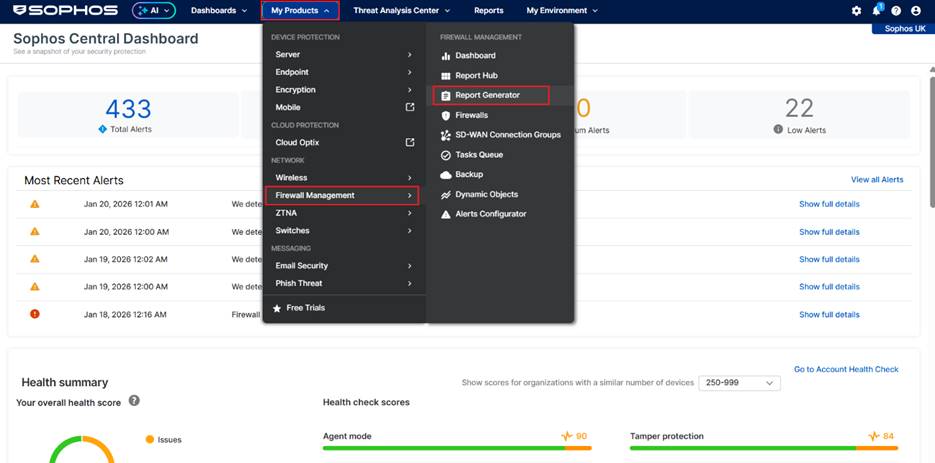
Report Generator is a tool that allows administrators to monitor, track, and create customized reports for Sophos Firewall.
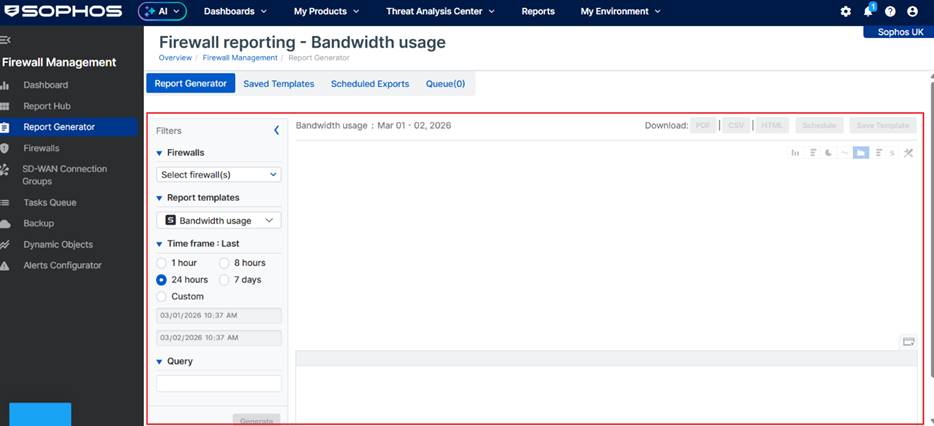
To monitor and export reports for a specified Firewall — in Report Generator, select:
- Firewalls: choose the Firewall that needs to export the report.
- Report Template: choose the available template that suits the monitoring needs, details include:
- Antivirus: Malware or suspicious objects that have been blocked.
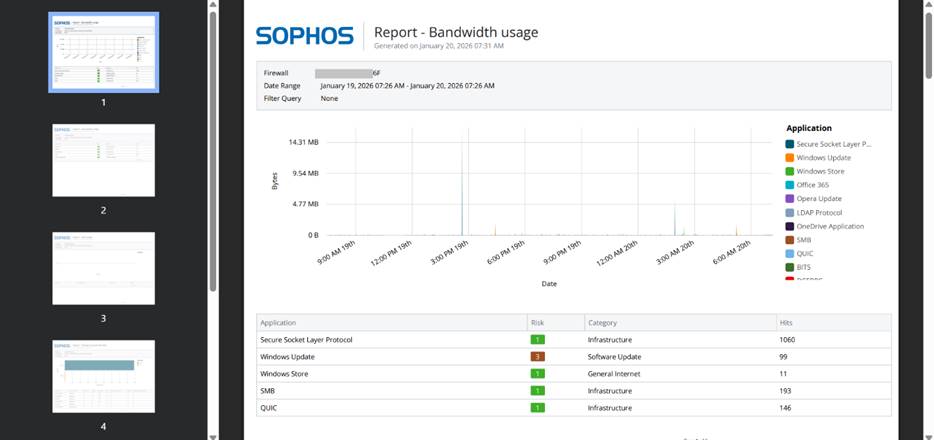
- Bandwidth usage: Bandwidth usage by each application.
- Cloud app risks and usage: Cloud applications being used and related risks.
- Firewall: Number of connections between specific IP addresses.
- IPS: Attacks detected/blocked by the IPS system.
- Log viewer and search: Detailed firewall logs (table-only format).
- SD-WAN: Summary of SLA performance for each SD-WAN profile, including trend charts.
- SD-WAN SLA trend: SLA trends by gateway (jitter, latency, packet loss).
- SD-WAN Bandwidth usage: Bandwidth statistics by gateway and over time.
- Security posture assessment (SPA): Overall evaluation of the system’s security level.
- (You can select up to 10 components such as: Bandwidth, Web usage, Threat geo activity…)
- (Recommended to use)
- Synchronized app: Statistics of applications identified by Synchronized App Control.
- Threat geo activity: Threats blocked by country.
- Threats and events blocked: All threats/events that have been blocked.
- VPN usage: Usage level of VPN connections.
- Web usage: Website access statistics.
- Web user risk: Web activity of users accessing high-risk websites.
- X-Ops: Advanced threat activities detected/blocked by the firewall, including traffic in MDR.
- Zero-day protection: Suspicious files/emails sent to the Sandstorm analysis module.
- Time Frame: choose the appropriate time period based on the monitoring requirements.
- Query: optional query to filter data according to monitoring needs.
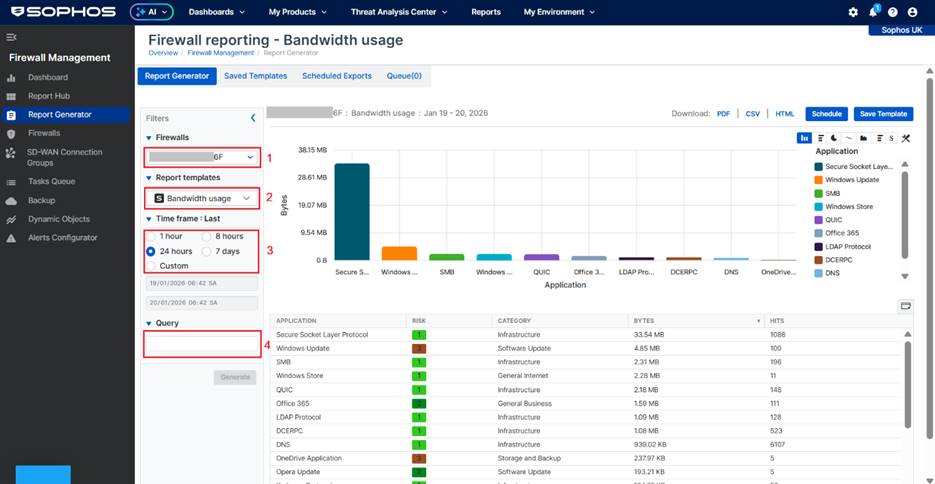
After that, click Schedule to schedule report delivery:
- Template Name: set the name of the report template.
- Export scheduling: enable/disable automatic report exporting according to schedule.
- Time frame: choose the data time range included in each report.
- Export frequency: choose the report export interval.
- Export format: choose the exported file format (PDF, CSV, HTML).
- Export notification / delivery: choose how the report email will be sent.
- Send this export to other Sophos admins?: choose whether to share the report with other administrators.
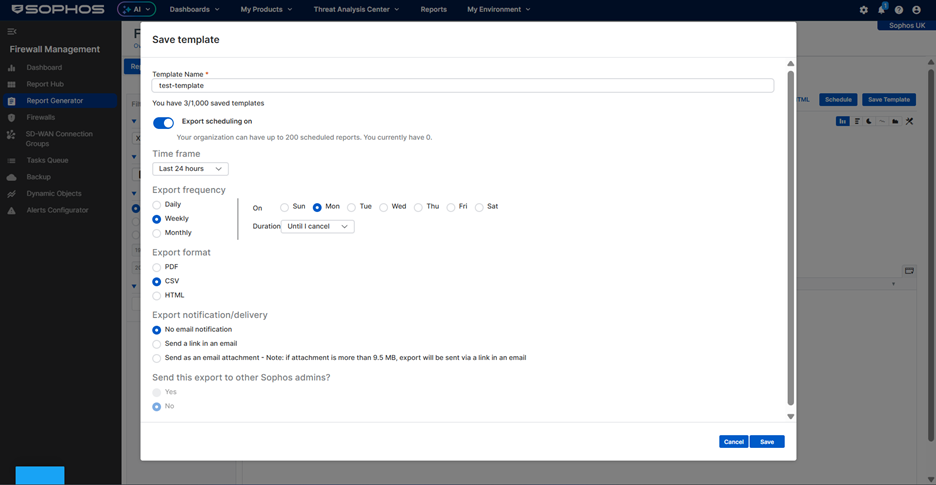
After completing the configuration, click Save.
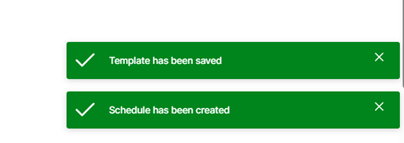
A notification will appear indicating that the Template and Schedule have been created successfully.
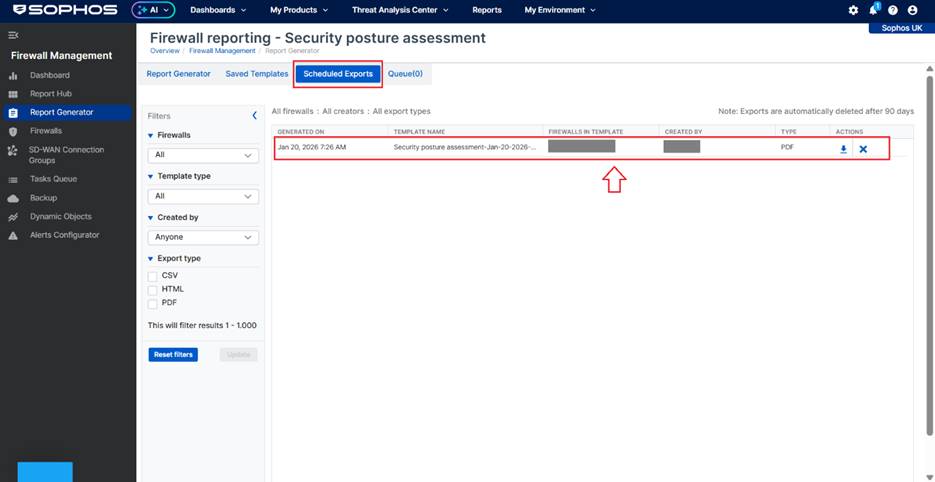
According to the configured schedule, Sophos will automatically export the report file based on the configured settings.